A computer migration to new laptops sounds like unboxing and logging in. The unboxing is fast. What takes time is everything the old machine had quietly accumulated: a saved login nobody remembers, a data file in an odd folder, a printer set up by someone who has since left. The measure of a good migration is whether anyone has to ask, on Tuesday, where something went.
Why the old laptop is bigger than it looks
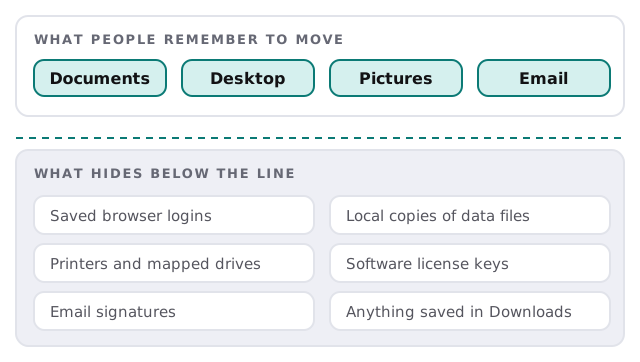
People remember their documents. They forget the rest.
The easy way: files already live in the cloud
If your team already uses OneDrive, Microsoft’s Known Folder Move makes most of the job disappear. It redirects the Windows Desktop, Documents, Pictures, Screenshots and Camera Roll folders to OneDrive, so the files are saved online as people work. A new laptop signs in and they come back.
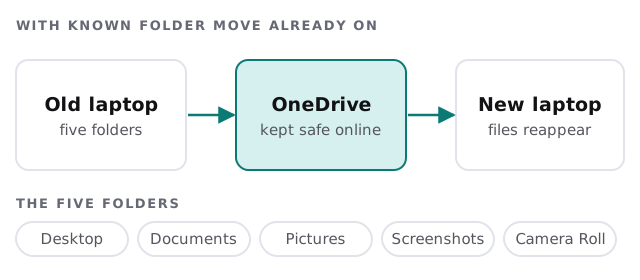
Two cautions from Microsoft’s documentation. It doesn’t work for users who sync OneDrive files in SharePoint Server. And if someone’s folders point at another organization’s OneDrive, the new setup shows an empty desktop until the files are moved across by hand. We look for both before swap day. Where Known Folder Move wasn’t on, we copy folders across as part of the swap.
Step by step
- List who’s getting what. Names, old and new machines, and any special software.
- Check what’s hidden. For each person, the grey-area list above: local data files, license keys, odd drives.
- Turn on cloud backup first. A laptop whose files are already online can be swapped without fear.
- Prepare the new laptop with updates, security settings and the standard apps before it reaches the desk.
- Swap. Sign in, check files and email, add printers and drives, re-link multi-factor sign-in.
- Sit with them. Five minutes at the desk to find what’s missing while it’s still easy.
- Wipe or retire the old one only after the person agrees nothing is left. Disposal is a decision, not an afterthought.
What a swap looks like at the desk
Maria’s new laptop is already on her desk when she arrives. She signs in, her desktop looks like it did yesterday, and Outlook opens with her signature. The printer on her floor is listed. She notices the accounting file she keeps in an odd folder isn’t there, and says so. It turns up in the old laptop’s list of data files and gets copied across before lunch. Nobody lost an afternoon.
What’s easy to miss
- Multi-factor sign-in tied to the old machine rather than to the person’s phone.
- Software licenses attached to a specific device.
- Local data files such as accounting data or design libraries saved outside the usual folders.
- Browser extensions and saved logins people rely on daily.
- Email archives held in a file on the old laptop and not on the server.
- Mapped drives and printers, which differ by room.
Questions to ask any provider
- How do you confirm nothing is on the old machine that isn’t anywhere else?
- What happens if a file turns up missing a week later?
- Do you wipe the old laptops securely, and can you tell us when that’s done?
- Will each person get time with someone at the desk, or just a delivery?
- Who keeps the record of which laptop belongs to whom?
What we need from you
A list of staff and their current computers. Admin access to your Microsoft 365 or Google account. The software each role needs, with licenses. And a decision on who signs off the old machines for wiping, because that part is easier with one name attached.
The best laptop migration is the one nobody mentions afterwards.