A Google Workspace to Microsoft 365 migration has one hard rule: email can’t stop. Clients don’t care that you’re changing systems, and a bounced message on a Tuesday afternoon is the only part of the project they’ll ever remember. Everything about the order below exists to protect that one thing.
What moves, and what doesn’t
Microsoft’s own migration tool copies mail, calendars and contacts from Google Workspace in batches of users. Its documentation is clear about the gaps:
| Item | Moves? | Watch for |
|---|---|---|
| Mail and filters | Yes | Filters arrive as Outlook rules, switched off |
| Vacation and auto-replies | No | Set them up again in Outlook |
| Calendar | Yes | Shared calendars and event colors don’t move |
| Contacts | Yes | Only three email addresses per contact come across |
| Room bookings | No | Re-create rooms and their bookings |
| Very large messages | Depends | The default limit for a single message is 35 MB |
| Drive files | Separately | Google Docs convert to Word, Excel and PowerPoint |
The order that keeps email flowing
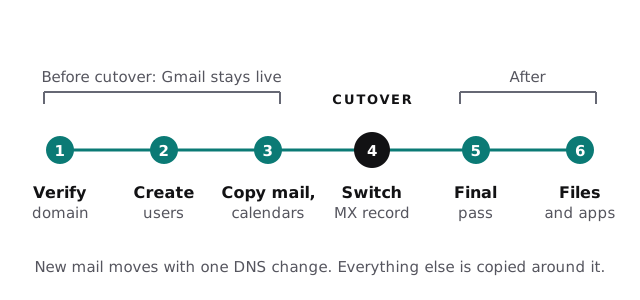
- Verify your domain in Microsoft 365, so it knows the business owns it.
- Create every user and assign licenses before any data moves.
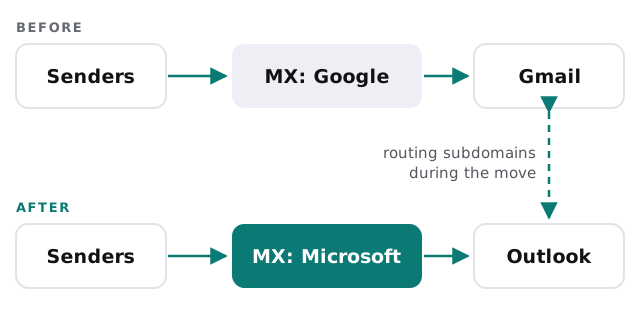
- Set up routing in both directions. Microsoft’s prerequisites call for subdomains that let mail reach Google and Microsoft while both are live.
- Copy mail, calendars and contacts in batches, while Gmail is still the live inbox.
- Switch the MX record so new mail lands in Microsoft 365.
- Run a final pass to pick up anything that arrived during the switch.
- Move Drive files and fix the shared links that pointed at them.
- Set up Outlook, Teams and phones, then switch off Google once everyone’s settled.
How mail finds its way during the move
The MX record is the address on the envelope: it tells the rest of the internet where your email lives. Change it too early and mail lands in empty mailboxes. Change it too late and people keep working in the old system. The routing subdomains are what make the gap safe.
Before the first batch
- Switch off retention and archive policies on the new mailboxes during the copy. Microsoft warns that items they move or delete otherwise look like data loss.
- List who shares which calendars, since those links have to be rebuilt.
- Find messages larger than the default size limit so they don’t fail silently.
- Clean up Drive before it moves. Every abandoned folder copied is a folder someone has to sort later.
The first week on Microsoft 365
The cutover weekend is quiet. The following week is where small things surface, so plan for it:
- Phones. Everyone adds their new account to Outlook or the phone’s mail app, and removes the old Gmail account so nothing is answered from the wrong place.
- Shared inboxes. Addresses like info@ and billing@ become shared mailboxes, with the right people given access.
- Signatures and auto-replies. These don’t come across, so each person sets them up again.
- Teams and OneDrive basics. A short session on where files live now and how sharing works.
- Keep Google read-only for a while. Don’t cancel the old licenses until everyone has checked that what they need arrived.
What we need from you
A Google Workspace admin who can create a project in Google’s admin tools, since Microsoft’s migration prerequisites call for one. Access to wherever your domain’s DNS is managed, for the routing records and the final MX change. A list of everyone moving, plus every shared address and alias. And one quiet weekend for the cutover, agreed in advance so nobody plans a big send that Friday.
Plan the files as carefully as the email. Mail usually moves cleanly; broken shared links are what people complain about in week two.