If you’re planning a QuickBooks Desktop to QuickBooks Online migration, the tool itself is the easy part. Intuit’s import takes a file and copies it. The work that decides how the next month goes happens before and after: cleaning the file, timing it around payroll, and proving the new books match the old ones.
The window you’re working inside
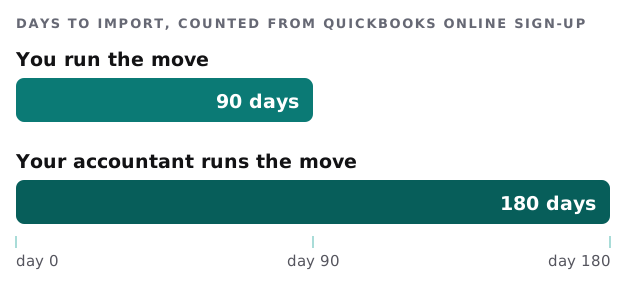
Intuit’s clock starts when you sign up for QuickBooks Online, not when you decide to move. You have 90 days from sign-up to import your data. If your accountant does the import, the window is 180 days.
The numbers worth writing down
| Item | What Intuit says |
|---|---|
| File versions the online tool accepts | .QBW, .QBM and .QBB files from QuickBooks Desktop 2011 or newer |
| Older files (2010 or earlier) | Run QuickBooks File Doctor first |
| Mac in-app move | QuickBooks Desktop for Mac 2020 or newer |
| After running Desktop Payroll | Wait 2 to 3 business days before moving |
| Payroll deadline | Finish at least 7 business days before your next payroll date |
| File too big | Check Total Targets (press F2 or Ctrl+1); if it’s over the limit, condense the file first |
Intuit also offers two import choices: all company data, or lists and balances only. For very large files, the second is the one it suggests.
Three piles after the move
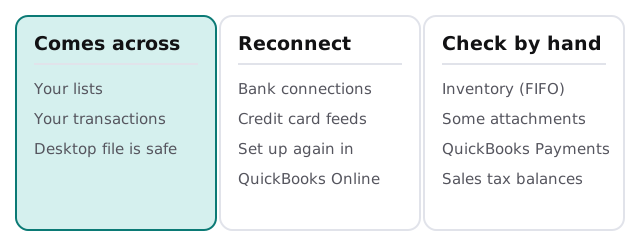
Everything lands in one of three piles. Knowing which before you start removes the “where did it go?” phone calls.
Is Online the right fit?
Intuit suggests a closer look before switching if you rely on any of these:
- Desktop Enterprise
- Inventory assemblies, or lot and serial numbers
- Advanced Pricing or price levels
- IIF imports
- Many custom fields
That’s not a “don’t”. It means price out the workaround, or the add-on app, before the import window starts.
Steps we follow
- Clean the Desktop file first. Update to the latest release, run Verify and Rebuild Data, and fix what it reports. Garbage in the old file is garbage in the new one.
- Clear the bank queue. Categorize and reconcile bank and credit card transactions in Desktop. Bank feeds don’t move, so unfinished work doesn’t either.
- Save the reference reports. Keep a copy of the Sales Tax Liability report, plus profit and loss and balance sheet for all dates.
- Time it around payroll. Run payroll, wait the 2 to 3 business days, and finish well before the next pay date.
- Sign up in the same country or region as the Desktop company, with an admin account on both sides.
- Import into an empty Online company. An existing company’s data is overwritten, and Intuit says that can’t be undone.
- Reconnect banks and card feeds. Then check inventory settings, attachments and any QuickBooks Payments account.
Prove it before you cancel
After the import, compare the new reports against the saved ones. Intuit’s advice is to check profit and loss and balance sheet using all dates and the accrual basis, and to keep Desktop until you’ve confirmed everything came across.
Don’t treat this as a formality. Run these three comparisons with your bookkeeper:
- Balance sheet totals as of your last closed month.
- Accounts receivable and payable aging, line by line for the largest balances.
- Sales tax balances against the saved liability report.
If a number differs, the Desktop file is still there to check against. Once it’s cancelled, the evidence is harder to reach.
What we handle, and what your accountant decides
We deal with the technical sequence: the file health check, the account setup, the connections, and a written list of what to compare afterwards. How inventory should be costed, how payroll history is treated and what your books should look like at a year end are accounting decisions, and those belong with your accountant. We’d rather loop them in on day one than rediscover that on day sixty.
If you plan to run the books yourself afterwards, our guide to setting up QuickBooks for your team covers permissions and the first week of use in Online.
Treat the 90-day window as a project, not a deadline: clean first, sign up second, and keep Desktop until the numbers agree.