Most SharePoint setups go wrong the same way: someone creates a site, invites everyone, and six months later nobody can say who is allowed to do what. SharePoint setup for small business is easier if you work backwards from people. Start with the three questions below, and the site types, groups and permissions mostly choose themselves.
Start with the people
Who writes?
If a small group works on the same material, such as a sales team or a project crew, you want a team site. Microsoft describes team sites as places where members work together on deliverables, and says all members are content authors. If a few people publish and many read, such as policies or news, you want a communication site instead.
Who reads?
Readers are the people who need to see content but should not change it. They become your Visitors group. Writing this list down is what stops a policy page from being edited by accident.
Who must not see it?
Pay, hiring and anything legal need a private home. Decide this before the site exists, because it is far easier than tightening access later.
Team site or communication site
| Team site | Communication site | |
|---|---|---|
| Built for | A group working on shared files and tasks | Telling a story or sharing content for viewing |
| Authors | Every member | A small number of people |
| Readers | The same group | A much larger audience |
| Permissions come from | A Microsoft 365 group, plus SharePoint groups | SharePoint groups |
| Connected to | Microsoft Teams and Planner by default | Nothing by default |
Microsoft’s own guidance is one unit of work per site, so you resist the urge to build one giant site with folders for everything.
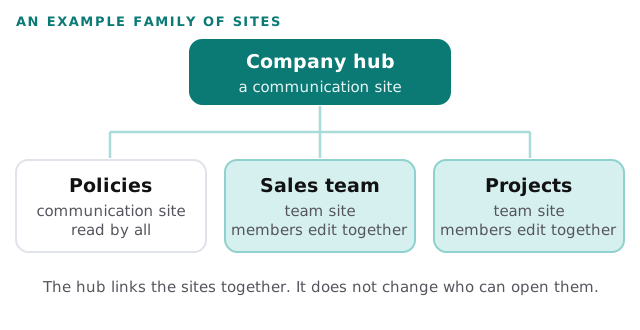
Where a hub earns its place
A hub is a link between sites, not a bigger site. Microsoft lists three things it gives you: shared navigation and brand, a roll-up of content and search, and a home destination. Two cautions from the same page matter more than the benefits:
- Associating a site with a hub does not change its permissions. If a site is restricted, only people with access see its content rolled up on the hub.
- A site can belong to only one hub.
Microsoft says an organisation can have up to 2,000 hubs. You will not need anywhere near that, and for a business with three to six sites you may not need one yet.
Three groups, set once
When a team site is created, SharePoint makes three groups for it. Microsoft’s defaults are Owners with Full Control, Members with Edit, and Visitors with Read.
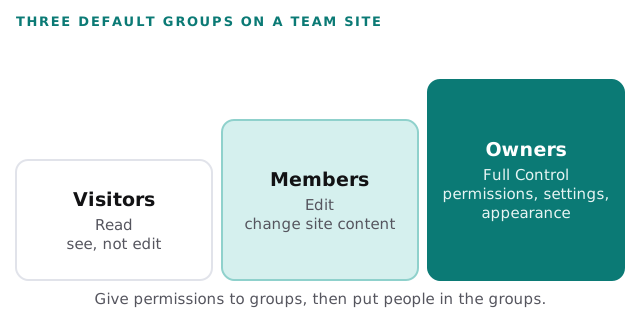
One default catches people out. Microsoft says a group-connected team site set to Public gives “Everyone except external users” the Edit level. If the site holds anything sensitive, set it to Private before you add content.
The order we set things up
- Name an owner for each site. Two, so a holiday does not leave a site unmanaged.
- Create the sites you can name a purpose for. Skip the ones that start with “miscellaneous”.
- Set privacy first. Public or private, before any file goes in.
- Add people to groups, not to the site one by one. Microsoft recommends groups for sets of users.
- Build one library per kind of document. Contracts, templates and finished projects rarely belong together.
- Add a hub once you have sites that need shared navigation.
- Run a leaver test. Remove a test account and see what it can still reach.
Mistakes we tidy up
- A single “Company” site holding every file, with nested folders eight levels deep.
- A communication site where everyone was made an owner, so anyone can reshape the home page.
- Permissions given to individuals, which become impossible to audit.
- A hub built before there were enough sites to need one.
Next to this page
If you are moving files from a server or another cloud, our page on SharePoint migration for small business covers limits and cutover. For laptops syncing personal files, see OneDrive setup for small business, and for chat and meetings, Microsoft Teams setup for small business. We can plan and build the structure, or review one you already have.
What we need from you
- The list of teams or functions, with a lead for each.
- The kinds of document each one keeps.
- Anything that must stay private, and who is allowed in.
- Where your files live today.
One site per unit of work, three groups per site, and a name against every group.