CRM data migration for small business looks like an export and an import. Two buttons. The reason it’s worth planning is that a CRM holds ten years of habits: three spellings of the same customer, a “Source” field used four different ways, and notes written in a style only one person understood. Import all that as it is and the new system inherits the mess, along with a team that stops trusting it in week one.
Four things that decide how it goes
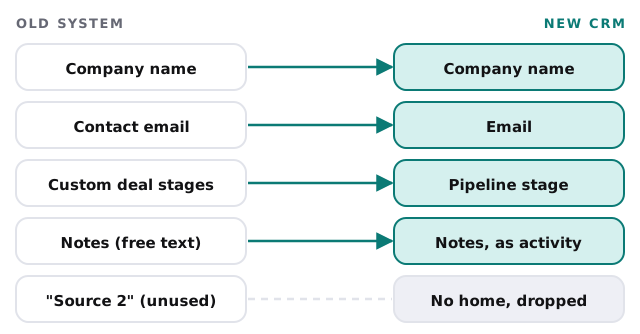
1. Map before you move
Every field in the old system needs a home in the new one, or a decision to drop it. Doing this on paper first is dull and saves the argument later.
2. Merge duplicates first
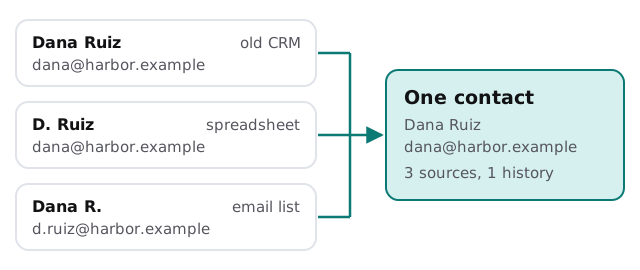
The same person usually exists two or three times, spread across systems. If the file you load has no unique identifier, the new CRM can’t tell. HubSpot’s own import guide says that without one the import creates duplicates, and it names email for contacts and domain name for companies as the usual identifiers.
3. Know the limits of the target
Every CRM has import limits. Using HubSpot as an example, its guide lists .csv, .xlsx and .xls files with one sheet, a header row matching its property names, UTF-8 encoding for non-English characters, up to 1,048,576 rows per file and 512 MB on paid plans, against 20 MB on its free tools. Your own target will have its own numbers, and we read them before splitting files, not after an import fails.
4. Decide what history comes along
Contacts and companies are easy. Deals, notes, calls and emails are where the decisions are. Often the answer is: deals in full, recent activity as notes, older history in an archive linked from the record.
The order we work in
- Export everything, and keep the exports untouched as a safety copy.
- Profile the data. Counts, blanks, duplicates, odd characters.
- Write the mapping. Old field, new field, rule for converting it.
- Clean in one place, not in the old system and the new.
- Test import with a few hundred records, and check them against the originals.
- Full import, then compare counts and spot-check records chosen by the team.
- Switch over, with the old CRM set to read-only for a time.
The sample review that pays for itself
Before the full import, we put a sample of fifty or so records in front of the people who use the CRM every day: your best salesperson, whoever does follow-ups, whoever sends the invoices. Their question is always the same. Is this the customer I know? If the answer is yes for a mixed sample, the mapping is right. If not, we fix the rule rather than the record.
Signs the cleanup is overdue
- Nobody trusts the “last contacted” date.
- Two reps have each emailed the same lead this week.
- The pipeline report needs a note to explain it.
- Custom fields have been added by three people, none of whom document them.
- Your list includes contacts who left their companies years ago.
Before and after
| Straight export and import | Planned migration | |
|---|---|---|
| Duplicates | Carried over | Merged first |
| Field names | Whatever the old system called them | Agreed and documented |
| Unused fields | Copied across | Dropped by decision |
| Day-one trust | Low | Higher, because the data was checked |
| Rollback | Messy | Untouched exports kept |
What we need from you
- Admin access to the old CRM and the new one.
- Anyone who maintains the old system’s custom fields, for a short conversation.
- A list of reports your team relies on, so we rebuild the right things.
- A decision on how much history you really need.
If you’re still choosing the destination, our walkthroughs for HubSpot, Pipedrive and Zoho CRM cover the setup once the data is ready to go in.
A new CRM doesn’t fix bad data. It just shows it to more people.