Dropbox is easy to start and easy to get wrong. Anyone can invite anyone, folders multiply, and a year later nobody knows which copy of the price list is current. A Dropbox business setup project fixes that at the start: decide the structure, decide who gets what, then move people in without disrupting a working week. If you are searching for Dropbox team setup for a small business, the sections below are what the job involves.
Draw the tree before you invite anyone
Dropbox’s help centre calls a team folder the hub of content for a team, and says team folders are shared with groups rather than individuals. Admins pick the role a group gets when a folder is shared, such as edit or view only. That design suits a small firm well, because access follows the group. When someone changes jobs you move them between groups, and you do not hunt through folders.
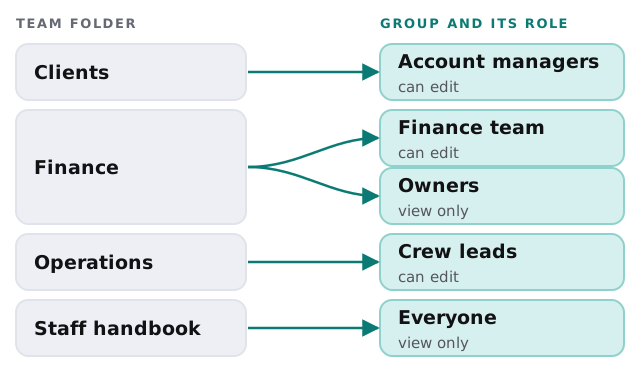
Decisions to make on day zero
| Decision | Why it matters later |
|---|---|
| Who is an admin | Two named people, so one holiday never blocks you |
| Top-level folders | Five or six, named in the words staff already use |
| Groups | One per role, not one per person |
| Naming rule | A file called “final v3” is a symptom, so agree a pattern |
| Where client work lives | By client, by year or by job, but only one of these |
| What happens on leaving | A hand-over of files and a removal of access |
Moving in without stopping work
Switching storage is where projects stall. People keep working in the old place because it is familiar, and for a month you have two sources of truth. The way around it is to move in stages and make the old location read-only before you close it.
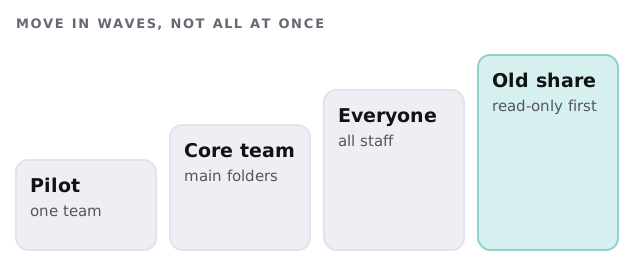
What we do in a wave
- Copy the agreed folders across and check the file counts match.
- Show the group where things now live, in ten minutes, in person or on a call.
- Watch for the first week of “I can’t find it” messages and fix the tree if the same one repeats.
What we leave alone
We do not delete from the old location. That is your decision, made after everyone has confirmed they can find their files.
What usually goes wrong
- Too many top-level folders. Twenty choices means nobody picks the right one.
- Personal invites everywhere. They look quick and become unmanageable.
- No owner for each folder. Nobody tidies it, so it fills with copies.
- Admin rights shared too widely. Anyone can then change access for everyone.
- No leaver routine. Files stay locked in a former employee’s account.
Before the first invite
Two checks save most of the grief. First, sign in as an ordinary member of each group and look at what they can reach, because the admin view hides mistakes. Second, try to share one folder with a person outside the company and see what the team sees when they do it. If either surprises you, fix the groups before anyone else arrives.
One page for the team
The last deliverable is a short guide staff will actually read: where files go, how to share with a client, what to do when something is deleted, and who to ask. It is a single page, written in your words.
What we need from you
- A list of the places files live today.
- The people, their roles and who manages whom.
- A named person to say yes to the folder tree.
This is a one-off project with a plan and a fixed quote. A person on our side checks the access settings with you before the whole team is invited.
Cloud storage does not fix a messy filing system. It just shares the mess faster.