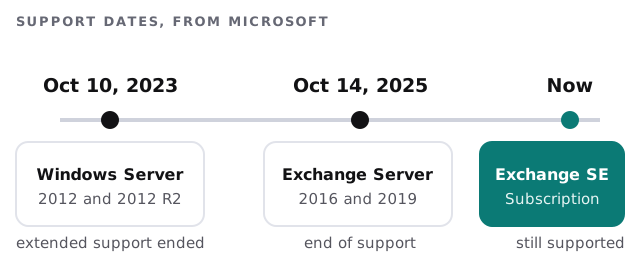
An Exchange Server to Microsoft 365 migration is usually triggered by a date. Microsoft’s supportability matrix says Exchange Server 2016 and 2019 reached end of support on October 14, 2025. Your mail still works, but the server is past its support window, and it’s the machine that holds every email you’ve sent and received. This page is about the options in front of you and how the move happens without a gap in mail.
Your two real options
- Move to Microsoft 365. Mailboxes live in Microsoft’s cloud, so there’s no Exchange server in your cupboard to patch or replace.
- Stay on-premises. Microsoft’s supported route is Exchange Server Subscription Edition. That keeps the server, its hardware and its upkeep.
Most small offices choose the first, because the second keeps the problem you were trying to get rid of. If you’re also unsure how Microsoft 365 hangs together, our page on Microsoft 365 setup covers the accounts, security and file storage that come with it.
Choosing the method
Microsoft describes several ways to move mailboxes from an Exchange server. The right one depends on how many mailboxes you have and how old your server is.
| Method | Best fit | What to know |
|---|---|---|
| Cutover | Fewer than 2,000 mailboxes, older Exchange | Everything moves over a few days. Microsoft suggests 150 or fewer. |
| Hybrid | Exchange 2013 or later, or larger and gradual moves | Old and new run side by side while people move in batches. |
| Staged | Exchange 2003 and 2007 with more than 2,000 mailboxes | Rarely relevant for a small office today. |
| PST import | Archives sitting in files | Handled separately from the live mailboxes. |
What a cutover moves
Microsoft says cutover moves mailboxes, mail users, mail contacts and mail-enabled groups with their membership. Email, calendar and contacts in each mailbox come with it. After the move, every migrated person is a new user in Microsoft 365, and you still have to assign licences to them.
Why hybrid exists
A hybrid setup keeps the on-premises and online mailboxes working together, so a few people can move this week and the rest next month. For a small business it’s more machinery than you’d choose by preference. It’s the right answer when the server is too new for cutover or when a single weekend isn’t workable.
The switch is one DNS record
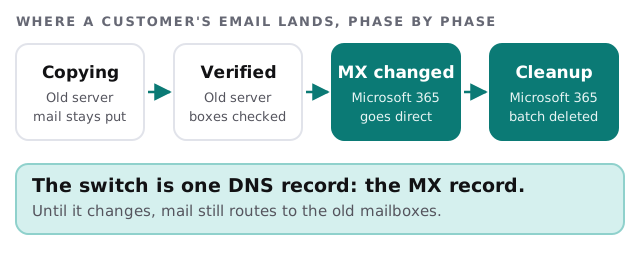
Email finds your office through an MX record, a line in your domain’s DNS. Microsoft is clear that until that record changes, mail sent to a migrated person still goes to their old on-premises mailbox. The cutover is the moment you change it.
The order we work in
- Count and classify. Mailboxes, shared mailboxes, rooms, distribution lists and anything that sends mail through the server, such as a scanner or accounting package.
- Verify your domain in Microsoft 365. Microsoft requires your primary domain to be accepted as one you own before a cutover.
- Prepare the old server and create the migration connection to it.
- Copy the mailboxes while people keep working as normal.
- Check a sample with the people who live in their inbox: calendars, shared folders, delegates.
- License the users and change the MX record.
- Create the Autodiscover record so Outlook finds the new mailbox without help.
- Retire the server only after a quiet week, not on the day.
Things that get forgotten
- Printers and scanners that email through the old server and need new settings.
- Shared mailboxes and calendars that people reach through delegate rights.
- Outlook profiles, which may need updating on each desktop.
- Phones that connect to the old server by hand-entered settings.
- Spam filtering that sits in front of the old server and still points to it.
What we need from you
- Admin access to the Exchange server and to your domain’s DNS.
- A list of every mailbox and who owns it.
- A day that suits you for the MX change, which is rarely a Monday.
- A decision about the old server: wipe, keep as a backup for a while, or recycle.
The server isn’t the risky part. The risky part is not knowing everything that talks to it.