Plenty of small businesses run on a Google Sheet that somebody keeps patching. It has a column of formulas, a colour code nobody remembers and a tab that must never be touched. A Google Apps Script developer takes that sheet and teaches it to act: send the reminder emails, fill in the quote template, copy last week’s rows to an archive, mark the invoice as chased. If you were looking for a Google Sheets automation expert, this is the work, written in the scripting language that already lives inside your Google account.
Things a scripted sheet can do
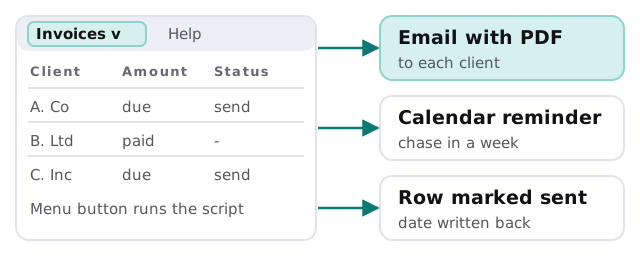
- Add a custom menu to the sheet, so a button runs a task.
- Read a row, fill a Google Docs template and email the result as a PDF.
- Create calendar events or reminders from dates in a column.
- Check new form responses and route them to the right person.
- Run overnight and email you a summary in the morning.
None of that needs new software. It needs someone to write it carefully, which is the difference between a script that works in a demo and one you can leave running.
Limits you design around
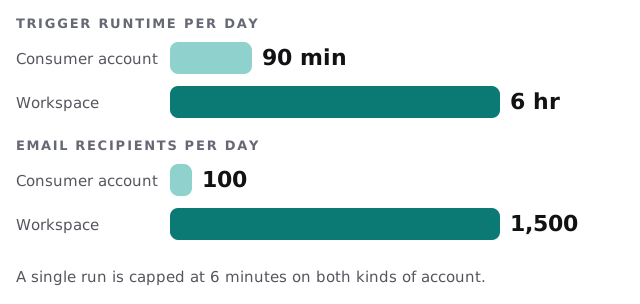
Google publishes quotas for Apps Script, and they shape what is sensible to build. The quota page lists a maximum of six minutes for a single script run on both consumer and Workspace accounts. Triggers, the timed jobs that run without you, have a total daily runtime of 90 minutes on consumer accounts and 6 hours on Google Workspace accounts. Email recipients per day are capped at 100 for consumer accounts and 1,500 for Workspace accounts.
| Limit | What it means in practice |
|---|---|
| Six minutes per run | A job over thousands of rows is split into batches that pick up where the last one stopped |
| Daily trigger time | Many small timed jobs add up, so we schedule with care |
| Daily email recipients | A mailing to more people than the cap needs a proper email service |
How we build one
- Read the sheet as it is. We look at the real data, including the oddities, before writing anything.
- Write down the job. In plain words: when it runs, what it reads, what it changes.
- Make it safe to rerun. Each row gets a status so a repeat never doubles an email or a payment reminder.
- Add a visible log. A tab that records every run, what it did and any errors.
- Send the failures somewhere. A named person gets a message when a run fails, not just a silent stop.
- Hand over with notes. Where it lives, who owns it, how to switch it off.
When a script is the wrong answer
- Many people edit the same sheet at once, and rows overwrite each other.
- The data has outgrown a spreadsheet.
- The process touches customer payments or legal records that need an audit trail.
- You need it to talk to a system Google does not connect to.
In those cases a connector tool or a small app is a better path, and we say so up front.
Rather build it yourself?
Not every task needs a developer. If your job is “when a row appears, do something in another app”, a connector may be enough, and our guides to setting up Zapier and setting up Make walk through that. Our page on a Zapier expert for small business covers where those tools fit. Come to us when the logic is too particular for a connector.
What we need from you
- Edit access to the sheet, or a copy with sensitive data removed.
- A description of what happens by hand today, in order.
- Whether you use a free Google account or Google Workspace, because the limits differ.
We begin with a plan and a fixed quote, and a person checks the first real run against your manual result.
A script is only as safe as its worst rerun. Build it so doing it twice does no harm.