Most owners think patch management for small business means leaving automatic updates on. It’s a good start, and it still leaves gaps. Computers that sleep in a drawer for a month, apps that update on their own schedule and the router nobody has logged into since installation all fall outside it. Automatic updates for business computers are the floor, not the ceiling. Real patch management adds a rhythm, a test group and proof, so that “we think they’re all up to date” becomes something you can show.
Why it’s called preventive maintenance
NIST’s guide to enterprise patch management describes patching as preventive maintenance for technology: identifying, prioritizing, acquiring, installing and verifying updates. That last word matters. Updating is half the job. Knowing what was updated, and what wasn’t, is the other half.
A monthly cycle
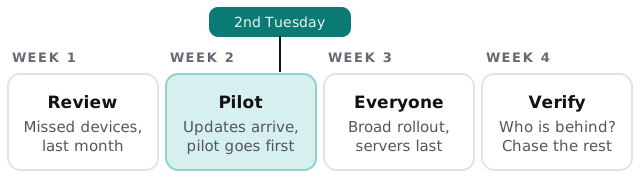
Microsoft says Windows quality updates, which carry security and other fixes, are typically released on the second Tuesday of each month, though they can come at any time. They’re cumulative, so installing the latest one picks up the earlier fixes. That monthly beat gives you something to plan around.
Why a pilot group
Microsoft’s own guidance describes deployment rings: groups of devices used to pilot an update first, then roll it out broadly. For a small office the ring can be as simple as two or three people, ideally covering your main kinds of computer. If your accounting software or a printer driver reacts badly, you hear about it before everyone does.
What “verify” means
At the end of the cycle someone checks which devices are behind and why. A laptop that was off all month needs a nudge. A machine that keeps failing an update needs a closer look. Without this step, a missing patch stays missing until it matters.
Which patch goes first
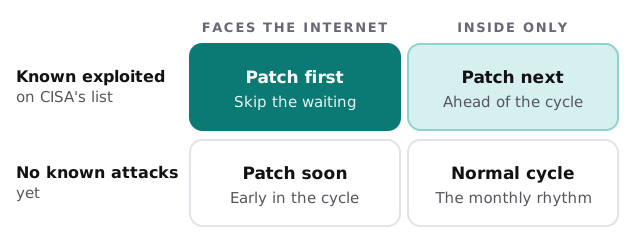
Not every update is equally urgent. CISA keeps a catalog of vulnerabilities known to be exploited in real attacks, and recommends using it as an input when you prioritize fixes. It also leaves each organization to judge how exposed each asset is to the internet. Together, those two questions sort most decisions.
What needs patching, and who does it
| Thing | Who usually updates it | How you know it happened |
|---|---|---|
| Windows and macOS | The operating system, or a management tool | A report, not an assumption |
| Browsers and common apps | Often themselves, sometimes not | A scan of installed versions |
| Phones and tablets | The owner, unless managed | A management console |
| Router and firewall | Nobody, unless somebody owns it | The device’s own admin page |
| Servers and storage | An administrator | A scheduled review |
| Printers and cameras | Nobody, in most offices | A device list with firmware dates |
The bottom rows are where small offices are caught out. They aren’t computers, so nobody thinks to update them, but they sit on the same network. A good device list is the first step, because you can’t patch what you haven’t counted.
Pairing with the rest
Patching reduces the number of holes. It doesn’t replace endpoint protection, which looks for attacks that arrive anyway, or Windows 10 end-of-support planning, which handles systems that no longer receive patches at all.
What we need from you
- A list of the computers, phones and network devices you use, even a rough one.
- A note of any software that’s sensitive to updates, such as accounting or specialized tools.
- Who should be in the pilot group.
Monthly care from us covers updates, and the report at the end of each cycle is how you can see them done. We start with the free IT check, then give you a plan and a fixed quote. A real person replies within one business hour, Monday to Friday, 9am to 5pm Pacific.
The goal isn’t to be fully patched at all times. It’s to know exactly what isn’t, and why.