Key takeaways
- Legacy software costs you in workarounds every week and in risk every day, even while it still works.
- Microsoft ended support for Windows 10, Office 2016 and Office 2019 on October 14, 2025. Anything that depends on them is running on borrowed time.
- Score your own system on six questions, then price the weekly workarounds and one bad week.
- Replace it in steps. Move the data first, keep what people know, and switch off the old system last.
The cost of legacy software is easy to ignore, because the software still works. Maybe it’s a database a former employee built years ago. Maybe it’s a desktop program that only runs on the old computer in the back office. It does its job, nobody wants to touch it, and it costs nothing new each month.
That last part is the trap. Old software doesn’t send an invoice. It charges you in workarounds every week and in risk every day. Developers call this technical debt. In a small business it looks less technical and more like habit: “Don’t update that computer, the order program won’t open.”
This post helps you put a number on it, so you can decide when to deal with it instead of letting a failure decide for you.
What counts as legacy software
You don’t need a precise definition. If any of these sound familiar, you have some.
- A database or spreadsheet system that one person built and only that person understands.
- A program that only runs on one particular computer.
- Software that needs an old version of Windows or Office to work.
- A system whose vendor has gone out of business or stopped answering.
- A tool your staff work around with paper, copy and paste or a second spreadsheet.
The last one matters most. Legacy software doesn’t have to fail all at once to cost you. It gets surrounded by workarounds until the workarounds are the real system.
The support dates that have already passed
Every piece of software has a date after which its maker stops fixing it. For a lot of small business software, that date has already come.
Microsoft ended support for Windows 10 on October 14, 2025. After that date, it stopped providing technical assistance, feature updates and security updates (Microsoft). Support for Office 2016 and Office 2019 ended the same day. Microsoft says it may no longer provide technical support, bug fixes or security fixes for them (Microsoft). If your old database or a key spreadsheet depends on one of those versions, it now runs on software Microsoft has stopped supporting.
The U.S. Cybersecurity and Infrastructure Security Agency keeps a short list of practices it calls dangerous. Using unsupported or end-of-life software is on it. CISA wrote the list for critical infrastructure, and it says the practice is especially egregious in technologies reachable from the internet. It also encourages every organization to address the practices on the list (CISA).
Score your own system
Answer these six questions for your oldest important system. The example column is invented, so you can see how a filled-in sheet reads. Write your own answers in the last column.
| Question | Example answer | Yours |
|---|---|---|
| Does it still get updates from its maker? | No, the vendor closed | |
| Does it run on Windows 10, Office 2016 or Office 2019, or older? | Yes, Office 2016 | |
| How many people can fix it when it breaks? | One | |
| Is it backed up, and has a restore been tested? | Backed up, never tested | |
| How many hours a week go to workarounds? | About 3 | |
| Could you work for a week without it? | Barely, on paper |
Be honest about the backup question. A backup that has never been restored is a hope, not a plan. Ask whoever looks after the system to restore a copy onto a different computer and open it. If that takes a day of fiddling, you have learned something important while nothing was on fire.
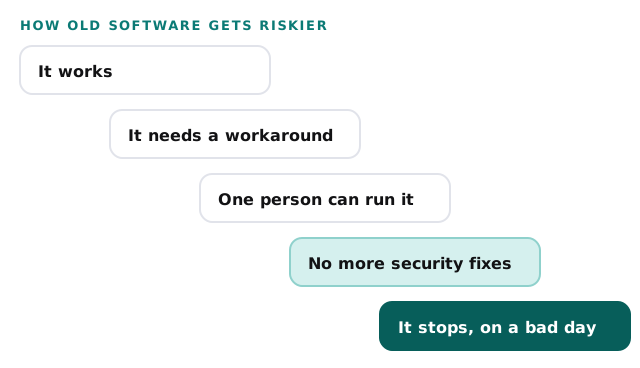
Each “no”, “one”, “never” or “barely” is a step down the staircase. Three or more means it’s time to plan, even if nothing is broken today.
Price the workarounds and one bad week
Two numbers matter here. One is what you already pay every week. The other is what a single failure would cost.
For the first, take the hours a week your team spends working around the system. That includes retyping its output into something else, running reports by hand and waiting on the one person who knows how it works. Multiply by what a staff hour costs you and by 50 working weeks. In the example above, 3 hours a week at $35 an hour comes to $5,250 a year.
For the second, imagine the system is gone for a week. How many people would be stuck, and for how many hours? Count paid hours that produce nothing, plus orders you couldn’t take. In the example, four people losing a 40-hour week at $35 an hour is $5,600 in wages alone, before a single lost sale.
| Line | Example | Yours |
|---|---|---|
| Workaround hours a week | 3 | |
| Cost of a staff hour | $35 | |
| Workarounds per year (3 × $35 × 50) | $5,250 | |
| People stuck if it stops for a week | 4 | |
| Paid hours lost in that week (4 × 40) | 160 | |
| One bad week in paid time (160 × $35) | $5,600 |
The first number tells you what waiting costs. The second tells you what you are betting each week that nothing goes wrong.
Why “replace it all” quotes stall
When owners do ask about replacing old software, the answer can be a full replacement project. A new platform, a migration, training for everyone and a go-live date months away. The quote is big, the disruption sounds bigger, and the old system still works. So the decision gets put off for another year.
That delay is how a manageable problem becomes an emergency. Meanwhile, the pitch has a few problems of its own.
It changes everything at once. A brand-new platform means new screens, new words and new habits for every person at the same time. That’s the most disruptive way to fix something.
It throws away what works. Your old system holds years of real knowledge about how your business runs. A generic platform may not have a place for your particular rules, so they get lost or pushed back into side spreadsheets.
It’s sized for the vendor. A large project is a large sale. That doesn’t make it wrong. But it means nobody in the room is arguing for the small, safe first step.
A safer way out
Replacing legacy software doesn’t have to be one big leap. A safer path moves in steps, and each step leaves you better off even if you stop there.
- Export the data to a plain format, so it no longer depends on the old program to be read.
- Write down what the system does, screen by screen, with the person who knows it best.
- Build or choose a replacement for the most-used part first, keeping familiar names and steps.
- Run old and new side by side for a short, fixed period, and compare the results.
- Move the rest across in pieces, then switch the old system off for good.
Step one is worth doing even if you go no further. Once the data sits in a plain format, the old program is no longer the only way to read your own records.
If your old system is a Microsoft Access database, our page on Access to web app migration covers that path in more detail. If the real issue is old computers, start with Windows 10 end of support.
What a replacement can look like
Here’s one system we built: an inventory system and online catalog for a diamond retailer. Staff open it in a browser, so it isn’t tied to any single computer. Every stone is tracked from intake to memo to sale, and customers see the price their own account allows.
We’re not showing it because your business sells diamonds. We’re showing it because it’s the kind of tool an old in-house database can turn into: one shared record that anyone with access can reach from a browser, on any computer. The most useful part is seeing how a system like this is put together, and how its screens map to the way staff already work.
Behind the scenes
Want a behind-the-scenes walkthrough of a real build?
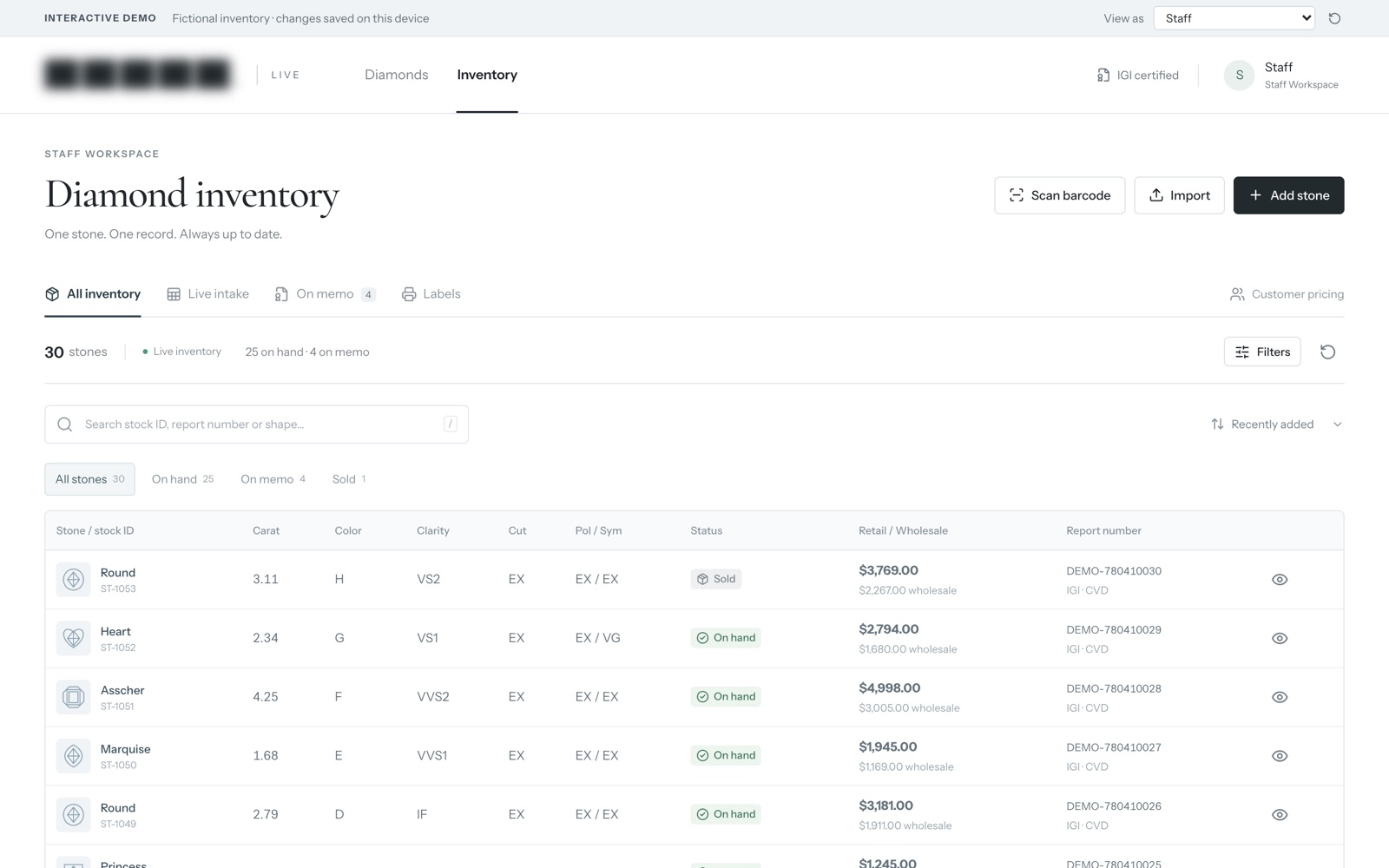
We will take you through it screen by screen: what each person sees, how a record moves through it, and why we built it that way. Then we can talk about the task that costs you most.
Frequently asked questions
Is it safe to keep using software that still works but is no longer supported?
It works until a new security hole is found that will never be fixed, or until an update elsewhere breaks it. The risk grows over time. If it touches customer data or the internet, plan its replacement now rather than after a failure.
Who should own an old system that only one employee understands?
Write down what it does and how to run it, and get a second person trained on it, before anything else. That is cheap, and it turns a crisis into an inconvenience if the one person leaves.
Can our old data move into a new system?
Start by exporting it to a plain format, such as a spreadsheet or a database file, so you can see what is there. If the old program cannot export at all, that is worth knowing early. Messy data can be cleaned on the way in.
Sources
About the author
Andy Kang, AI Partner Team. Andy Kang writes the blog for AI Partner Team, which builds AI tools and internal apps for small businesses alongside managed IT and IT projects. The blog shows the math and the reasoning behind that work, so you can check it against your own business.
- Every fact links to the page it came from, listed under Sources.
- Example numbers are labelled as examples, and you can swap in your own.
- Builds are shown on sample data, with no client names or client figures.