An email migration service for small business sounds like one job: move the mail from the old system to the new one. In practice the job depends on what you’re moving from. Microsoft’s own documentation separates the routes by what they carry, and the difference between “mail only” and “mail, calendar and contacts” is where most unpleasant surprises come from.
Start with what’s in the mailboxes
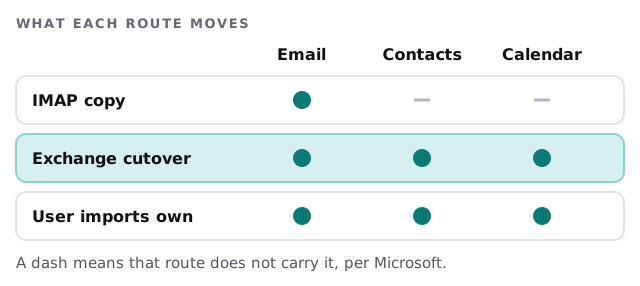
Email only
An IMAP migration copies what’s in each person’s mail folders. Microsoft states that contacts, calendar items and tasks can’t be migrated with IMAP, though a user can move them manually. It also doesn’t create the new mailboxes. You create the users and licences first.
Contacts and calendars
When people have years of appointments and a contact list that’s really their address book, we plan this part on its own. Options include having each person import their own, or using a route that carries them. Our write-up on moving from Google Workspace to Microsoft 365 covers one common case in detail.
Shared mailboxes and old archives
An info@ address read by three people is a different thing from three personal mailboxes. We list those before the move. Old PST files are usually handled apart from the live mail, through Microsoft’s import service, so an archive doesn’t hold up the cutover.
Where “missing mail” comes from
Three limits in Microsoft’s IMAP documentation account for most complaints.
| Limit | What Microsoft says | What it means for you |
|---|---|---|
| Item count | Up to 500,000 items per mailbox, copied newest to oldest | A very old, very full mailbox can lose its oldest messages |
| Message size | The biggest email you can migrate is 35 MB | Large attachments may stay behind and are listed |
| Retention rules | The tool doesn’t recognise archive or retention policies | Deleted or archived items show up as “missing” |
None of these is a surprise if you look for them beforehand. We check mailbox sizes first and report any that sit near the limit, then switch off retention rules only if you agree.
Passwords, access and the quiet stage
Microsoft’s guide says that if you know the user passwords or can open mailboxes with administrator access, there’s no impact on users until the old system is shut down. If you can’t, passwords have to be reset so the tool can get in, and people won’t be able to reach their old mailbox until they’re given the new one. We prefer admin access and avoid password resets wherever we can.
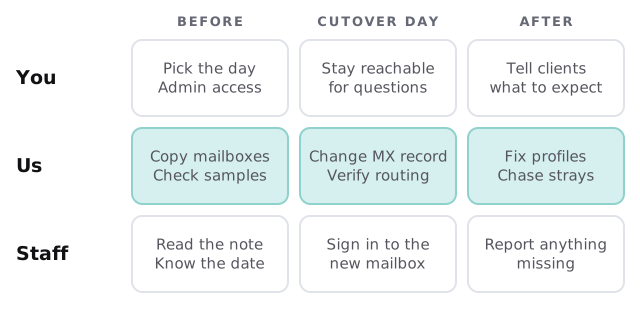
A migration in order
- Inventory. Every mailbox, alias, shared mailbox and group, with its owner and size.
- Create the destination. Users, licences and the verified domain in Microsoft 365. If you’re new to it, Microsoft 365 setup covers that stage.
- Connect to the old system with admin access or a mailbox list.
- Copy in batches, starting with a pilot of two or three people.
- Verify counts and a sample of folders, with the people who use them.
- Change the MX record so new mail goes to the new mailboxes.
- Stop the sync once routing is confirmed, then send people their welcome note.
- Keep the old mailboxes for a defined period before closing them.
What goes wrong on the day
- A mail forwarder or spam filter still pointing at the old host.
- A phone with the old account set up by hand.
- An accountant or scanner sending to a mailbox that no longer exists.
- Someone who can’t find their sent items because folders were renamed.
We keep a short list of each and fix them in order on cutover day.
What we need from you
- Admin access to the old email system, or a way to reach each mailbox.
- Access to your domain’s DNS.
- A list of aliases, shared inboxes and any rules that matter.
- A date the business can live with.
- One person at your end who can say “that looks right”.
Mail doesn’t move on its own. People, rules and devices move with it, and all of them need an owner.