Every office has the box: a server bought years ago, tucked in a closet or under a desk, that nobody wants to touch because nobody is sure what depends on it. To replace old server for small business gear, you don’t begin with a quote for new hardware. You begin with the date on the label.
Read the date first
Microsoft publishes lifecycle dates for every Windows Server version. The two we meet most in small offices are these:
- Windows Server 2012 R2: extended support ended in October 2023. Microsoft sold paid Extended Security Update years after that, and the last one ran until October 2026.
- Windows Server 2016: mainstream support ended in January 2022 and extended support ends in January 2027.
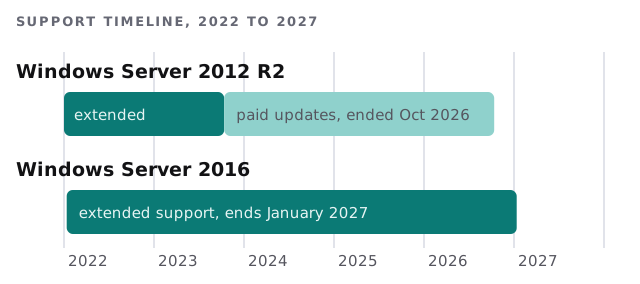
After a version’s extended support ends, it stops getting security updates unless you pay for more. That’s the signal to move, not the moment the machine breaks.
Four ways out
| Route | Fits when | Watch for |
|---|---|---|
| New server in the office | A local app or equipment needs it | Hardware to maintain and back up again |
| Server hosted in a cloud data center | The app needs a server but nobody needs it in the building | Remote-access speed to the app |
| No server: files and logins in the cloud | The box mainly holds shared folders and sign-ins | Old file paths and permission clean-up |
| Leave it and wrap it | A one-off legacy app that can’t move yet | The box stays a known risk, so isolate it |
Most small offices end up with a mix: the folders move to the cloud, and the one fussy application goes to a hosted machine.
What the box really does
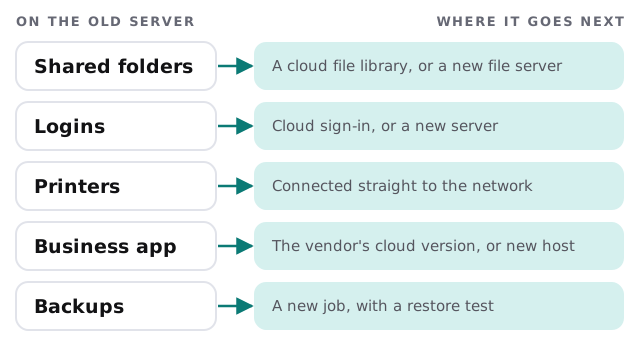
Before choosing a route, write down every job the old server performs. The visible one is usually “files”. The ones that bite are the quiet ones.
Signs it’s time
- The server is out of vendor support, or you can’t say whether it is.
- Nobody can log in as administrator without a sticky note.
- Remote staff reach files through a workaround that nobody likes.
- The last successful restore test was never.
- A single hard drive failure would stop the office.
- Software vendors have started asking which Windows version you run.
The cutover, in order
- Inventory. Shared folders and their permissions, user accounts, printers, scheduled tasks, installed applications, licenses, and the backup job.
- Pick a destination per job. Use the table above and write the decision next to each row.
- Build the new home alongside the old. The old server keeps running while the new setup is made and tested.
- Copy the data, then check it. Compare folder counts and sizes, then open real files with the people who use them.
- Move people in groups. Start with someone patient, fix what they find, then do the rest.
- Keep the old server on, read-only, for a while. Switch it off only after the team has been using the new setup without surprises.
- Take a fresh backup of the new setup and test a restore before you retire anything.
If your folders are heading to Microsoft 365, our page on SharePoint migration for small business covers the limits that trip up file moves. If your email also lives on the old box, Exchange Server to Microsoft 365 migration explains that move separately.
What we need from you
- Admin access to the server, even if it’s the one sticky note.
- A list of the applications your team can’t work without.
- Names of the vendors who support those applications.
- A rough map of who needs which folders.
We start with the free IT check, walk the closet with you, and send a plan and a fixed quote. A real person replies within one business hour, Monday to Friday, 9am to 5pm Pacific.
Don’t ask what a new server costs. Ask what the old one does, and the right size of replacement, which may be none, follows.