Owners ask us about SharePoint vs Google Drive for business when they’re about to commit: a new hire is joining, an old server is going, or somebody’s file link just stopped working. The comparison charts online are long. The honest version is short, and it starts with the numbers each company publishes.
What the vendors actually publish
| Question | SharePoint and OneDrive (Microsoft 365) | Google Drive (Workspace) |
|---|---|---|
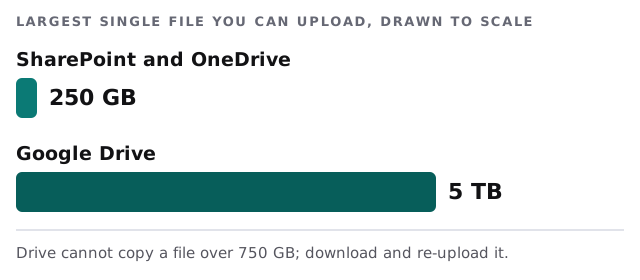
| Biggest single file | 250 GB | 5 TB (files over 750 GB can’t be copied) |
| Daily limit per person | None listed on Microsoft’s limits page | 750 GB of uploads and copies in 24 hours |
| Shared storage | 1 TB plus 10 GB per license (business plans), not counting each person’s OneDrive | Business Standard: 2 TB per user, pooled. Business Starter: 30 GB per user, pooled |
| Items in one library | Up to 30 million files and folders | Not stated on the limits page |
| Path length | 400 characters including the file name | Not stated on the limits page |
| Sync guidance | Sync no more than 300,000 files per library | Not stated on the limits page |
Where a cell says “not stated”, that isn’t the same as “no limit”. It means the page we read didn’t give a number, and we won’t invent one.
Where the differences show up in daily life
Permissions at scale
SharePoint has a rule worth knowing before you build a big library. Once a list, library or folder holds more than 100,000 items, you can’t break permission inheritance on it. In practice that means planning your folder structure and access groups before the pile gets big, not after. Our page on SharePoint migration for small business explains the same trap from the migration side.
Sync on laptops
Both products let people see files on their own computer. Microsoft recommends syncing no more than 300,000 files in one library, and the same performance issues appear if the total across all synced libraries passes that. Offices with huge archives should sync only the folders each person needs.
Getting files back
SharePoint’s recycle bin is the first line of defense. Microsoft also says users can restore an entire OneDrive to any point within the past 30 days, and version history can roll back after a ransomware attack. Neither replaces a separate backup, which is a conversation for another page.
One question that decides it
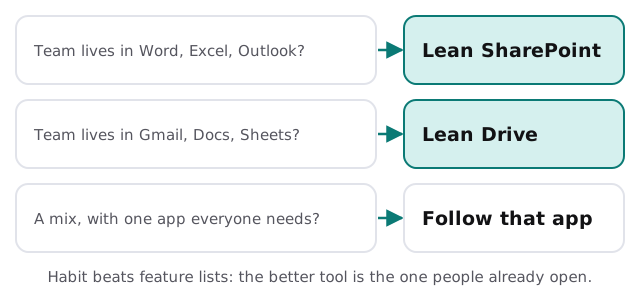
If your staff draft in Word, track in Excel and email in Outlook, SharePoint will feel like a continuation. If they write in Docs, plan in Sheets and email in Gmail, Drive is the same story. Our guide to Microsoft 365 vs Google Workspace for small business covers the whole suite, since files are only one piece of that choice.
Questions to settle before you pick
- Who owns each folder? A named person per top-level folder, not “everyone”.
- Who can share outside the company? Decide now; the default is rarely what you want.
- What happens when someone leaves? Their files should stay with the business.
- Where does client work live? One place, with a naming pattern.
- How big is the archive you’ll move? The 300,000-file sync guidance matters if the answer is “very”.
If you’re already on one and want to switch
Moving between them is a project, not a drag-and-drop. Sharing links change, permissions don’t map one to one, and filenames that work in one system may not in the other. We plan it as an inventory, a test move of one team’s folders, then the rest. Start with the free IT check and we’ll send a plan and a fixed quote, and a real person replies within one business hour, Monday to Friday, 9am to 5pm Pacific.
Choose the storage that matches the apps your people already open. Features rarely break a small office; changing habits does.