Zoho CRM is a capable system with a lot of modules, and businesses often outgrow the way they’ve bent it. When the answer is to move, the zoho to hubspot migration (some people search for it as Zoho CRM to HubSpot) usually comes down to five decisions. The tool does the heavy lifting. Those decisions are yours.
Decision 1: leads and contacts
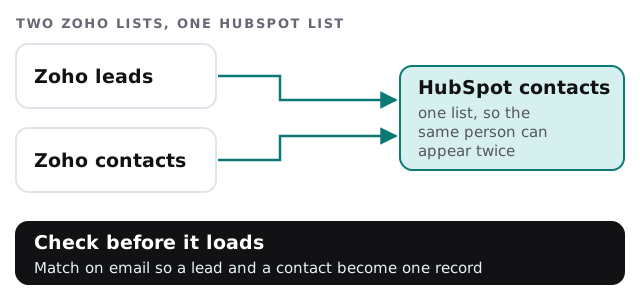
HubSpot’s list says Zoho Leads map to HubSpot Contacts, and Zoho Contacts map to Contacts too. If someone sits in both Zoho lists, you can get two HubSpot records for one person. We match on email before loading and merge in Zoho, where you know the history, rather than in HubSpot, where merging can’t be undone.
Decision 2: pipelines
HubSpot describes a backfill workflow that sets the Pipeline property on deals, and says it addresses the lack of multi-pipeline support in HubSpot’s own Zoho integration. In plain terms: if you run more than one deal pipeline in Zoho, we plan how each lands, and check a sample of deals afterwards.
Decision 3: custom modules
Zoho lets you build your own modules for things like projects, vehicles or policies. HubSpot says custom objects aren’t supported by Smart Transfer. Each one gets a choice: rebuild as a HubSpot custom object and import by file, flatten into properties on a company, or leave in an archive.
Decision 4: the second pass
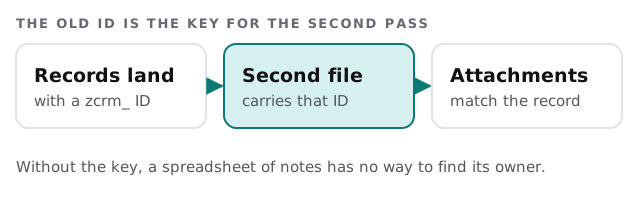
HubSpot lists attachments and deal line items as a transfer done after the main sync, which then won’t stay current. The zcrm_ prefixed ID properties give those later imports a key to match on.
Decision 5: the date it stops
Pick a day when Zoho CRM becomes read-only, and tell the team in advance. Until then, edits in Zoho after the transfer won’t appear in HubSpot, so a short freeze before the final transfer helps.
What Smart Transfer covers for Zoho
| Zoho CRM | HubSpot |
|---|---|
| Leads and contacts | Contacts |
| Accounts | Companies |
| Deals | Deals |
| Meetings, calls, tasks | Activities |
| Products | Products |
| Users and currencies | Users and currencies |
Only a Super Admin can run Smart Transfer, and custom field mappings need a Data Hub subscription, per HubSpot’s own page. Before it runs, HubSpot suggests an audit of the source so you know the record counts and field types going in.
How we check it
After the transfer, we pull a sample that includes the awkward cases: a lead who later became a customer, a deal in a second pipeline, a company with several contacts, and a record with an attachment. Someone from your team opens each one in HubSpot and compares it with Zoho. If the contact is duplicated, the pipeline is wrong or the company link is missing, we change the rule and repeat. Only then does the team move across.
What you rebuild
- Workflows and blueprints, described and rebuilt as HubSpot workflows.
- Web forms, repointed or recreated.
- Reports and dashboards, rebuilt from the questions your team asks.
- Roles and profiles, re-created as HubSpot users and permissions.
What we need from you
- A Zoho admin login and a Super Admin login for HubSpot.
- A list of custom modules, and who uses each.
- Your rule for when a lead is a contact.
- The date Zoho CRM goes read-only.
If you are still comparing options, our setup walkthroughs for Zoho CRM and HubSpot show both sides, and CRM data migration for small business covers the planning that applies whichever way you go.
The most common mistake is loading leads and contacts as two lists and discovering later that they were one person.