Key takeaways
- Managing a shared inbox goes wrong in two ways: two people answer the same email, or nobody does.
- Microsoft's shared mailboxes control who can open the mailbox and who can send from it. Google's collaborative inbox lets a member take or assign a conversation. In both, ownership only happens if someone uses the tools.
- Count three things for one normal week: emails answered twice, emails nobody answered, and the minutes spent checking who has what.
- Look for a setup where every email has one named owner, drafts are prepared, and a person approves each reply.
Managing a shared inbox sounds like a setup task. You create the address, add your team and you are done. The trouble starts a week later, when a client’s email sits in the list and every person on the team assumes someone else has it.
That is the cost this post is about. It is not the time spent reading email. It is the time spent working out who is on what, and the emails that fall through while everyone works it out.
What a shared inbox does and does not do
Microsoft 365 and Google Workspace each have a feature for this, and it helps to know what each one actually promises.
Microsoft describes a shared mailbox as a way for a group to monitor and send email from a common account, such as an info@ or support@ address. When someone in the group replies, the message looks like it came from the shared mailbox and not from the individual (Microsoft Learn). The same page explains the permissions. Full Access lets a person open the mailbox and read, change and delete messages. It does not let them send. For that, they also need Send As, which makes mail look like it came from the mailbox, or Send on Behalf, which shows the person’s name next to the mailbox’s.
Notice what that page covers. It covers who can open the mailbox and who can send from it. It says nothing about who owns a given message.
Google’s version is a group set up as a collaborative inbox. There, a conversation can be assigned to yourself or another member, and it can be marked complete, as needing no further action, or as a duplicate of another conversation (Google Workspace). That is closer to ownership. But a person still has to assign it, and assigning needs a group permission that someone has to have switched on.
So the tools exist. What they cannot do is make anyone use them on a busy Tuesday.
What goes wrong in a service inbox
Two failures matter, and they are opposites.
| What happened | What the client sees | What it costs you |
|---|---|---|
| Two people answered | Two replies, maybe two different answers | Double the time, and a client who wonders who is in charge |
| Nobody answered | Silence | A client who calls, switches or stops writing |
| Someone checked, then asked around | Nothing yet | Minutes of “do you have this one?” on every email |
The third row is the one that does not get counted unless you look for it, because no one has a reason to write it down. It does not show up as a mistake, because nothing went wrong. It is just a small tax on every email, paid by every person who looks at the list.
Here is an invented example, to show how it happens. A client writes in about a certificate request. Three people see it come in. The first assumes the second will take it, because it is the second person’s client. The second is on the phone. The third opens it, reads it, closes it and moves on, since the first two are surely on it. The client hears back the next day, or not at all.
Count one week
Pick a normal week and do this together, with the shared inbox open.
- Count the emails that came in to the shared address.
- Mark each thread that got two replies from your side.
- Mark each thread that got no reply, or one more than a day late.
- Ask each person to estimate how many minutes a day they spend checking whether someone else has an email.
Then fill in the worksheet. The Example column is invented, to show the format. Fill in the Yours column from your own week.
| Line | Example | Yours |
|---|---|---|
| People who watch the shared inbox | 4 | |
| Minutes a day each spends checking who has what | 15 | |
| Hours a week across the team (4 × 15 × 5 days ÷ 60) | 5 | |
| Cost of a staff hour (from your payroll) | $30 | |
| Checking time for the year (5 × $30 × 50) | $7,500 | |
| Emails answered twice in a week | 6 | |
| Hours lost to double replies in a week (6 × 10 minutes) | 1 | |
| Double-reply time for the year (1 × $30 × 50) | $1,500 | |
| Emails nobody answered last year | 12 | |
| What one was worth to you | $250 | |
| Dropped emails for the year (12 × $250) | $3,000 | |
| Total for the year | $12,000 |
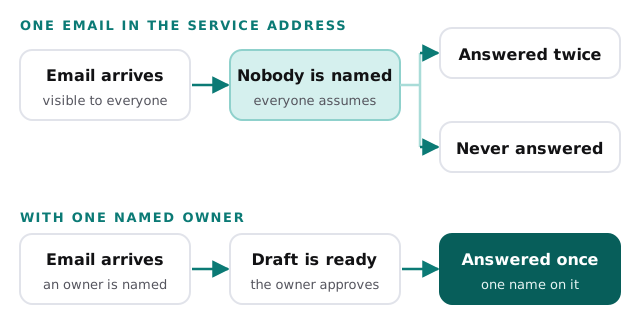
After the count, a few questions are worth asking the team. Which emails were hardest to place? Which clients write in about things that are not routine? Did anyone find an email days later by accident? The answers show where a name on the email would have helped.
The dropped-email line is the hardest to fill in honestly. If you can’t think of a specific one, put the number you can remember and leave it at that. A small true number is more useful than a large guessed one.
Why the usual fixes fall short
When owners notice this problem, the reflex is to change the setup. Three changes are worth a look.
A rule that says “reply to what you open.” It is free and it is clear. But it does nothing for the email nobody opens, and it assumes every person is at their desk at the same time. The email that arrives while two people are out is the one that sits.
A shared password everybody uses. It feels like the simplest way to give the team access. It also means you cannot tell who did what, and you cannot remove one person without changing it for all. Microsoft’s own page points the other way. A shared mailbox comes with an account whose system-generated password is unknown, and your team opens the mailbox from their own sign-ins.
A help desk app. A proper ticket system gives every email a status and an owner. That is real help. The catch is the same one as before: someone has to assign each ticket, and your team has to learn a new tool alongside the one they already live in. Check whether that overhead is bigger than the problem you have today.
None of these is wrong. Each one asks a person to remember to do the owning, and remembering is the part that fails.
What to look for instead
Look for a setup where ownership does not depend on anyone remembering, and the reply stays with a person.
| Ask for | Instead of |
|---|---|
| Every email gets one named owner when it arrives | A list everyone can see and nobody owns |
| Each person signs in as themselves | A shared password |
| A drafted reply waiting for the owner | A blank reply box |
| The owner approves the reply before it goes out | Replies sent with nobody checking |
| An open email shows how long it has waited | Guessing from the order of the list |
| A backup named for when the owner is out | An email that waits for one person to return |
The setup itself is described on our page about AI email triage for shared inboxes, and our insurance agencies page shows how it fits a service desk. If you want the wider picture of what routine email costs a team, we wrote about it in Time Spent on Email.
Give any change a month, then repeat the one-week count. Fewer double replies, fewer dropped emails and fewer checking minutes, priced with the worksheet above, show what it was worth.
An assistant we built, from the inside
Our AI executive assistant and operations dashboard drafts inbox replies for one-tap approval and answers questions about sales, orders and cash. It’s a working demo, shown on sample data.
It isn’t a shared-inbox tool. We’re showing it because of how it treats a reply. A draft is prepared for a person, and that person decides whether it goes out. That is the shape a service address needs, with a name on every email and a draft waiting.
Watching it work shows how a draft reaches a person and what they do with it.
Behind the scenes
Want a behind-the-scenes walkthrough of a real build?
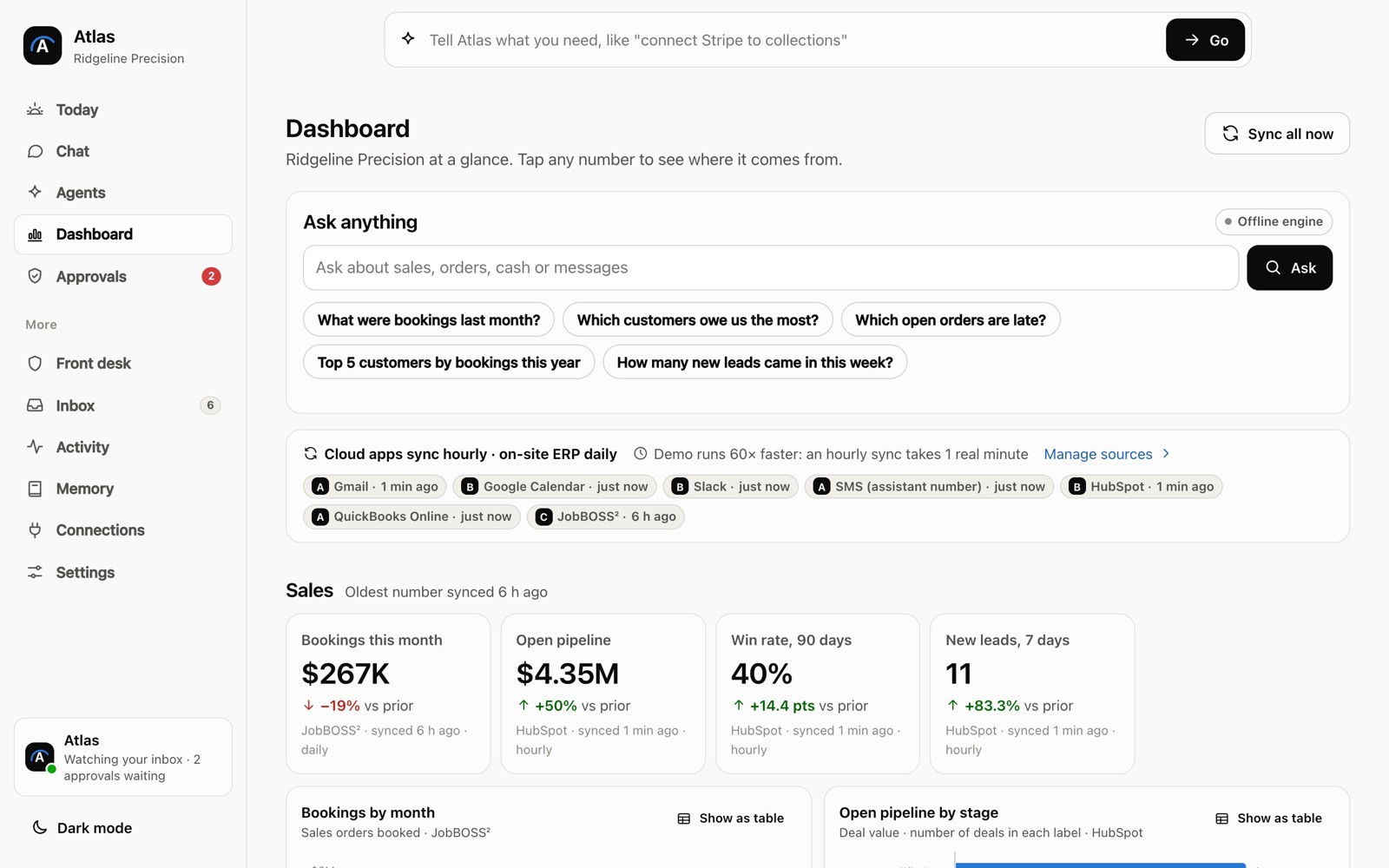
We will take you through it screen by screen: what each person sees, how a record moves through it, and why we built it that way. Then we can talk about the task that costs you most.
Frequently asked questions
Should a service inbox have one login that everyone shares?
No. Give each person their own sign-in and let them open the shared address from it. That way you can take access away from one person without changing a password for everyone, and you can tell who did what.
How do I tell whether emails are being dropped?
Sort one week of the shared inbox by date and look at each thread. Mark any that has no reply from your side, or a reply more than a day late. Then ask the team whether each one was a mistake or an assumption that someone else had it.
Who should own a shared inbox at a small agency?
Name one person as the lead and one backup. The lead does not answer every email. They make sure every email has a name on it by a set time each day.
Sources
About the author
Andy Kang, AI Partner Team. Andy Kang writes the blog for AI Partner Team, which builds AI tools and internal apps for small businesses alongside managed IT and IT projects. The blog shows the math and the reasoning behind that work, so you can check it against your own business.
- Every fact links to the page it came from, listed under Sources.
- Example numbers are labelled as examples, and you can swap in your own.
- Builds are shown on sample data, with no client names or client figures.