Signing up for Google Workspace takes minutes. What takes judgement is the layout you end up with a year later: who can administer it, where team files live, and whether a departing employee takes a piece of the company with them.
This is the order we follow for a Google Workspace setup for small business, and why each step sits where it does.
Seven steps, in this order
- Confirm who owns the domain. Google states you must verify ownership of the domain before setting up Gmail. We find the registrar login first, because an owner who left in 2019 can stall everything.
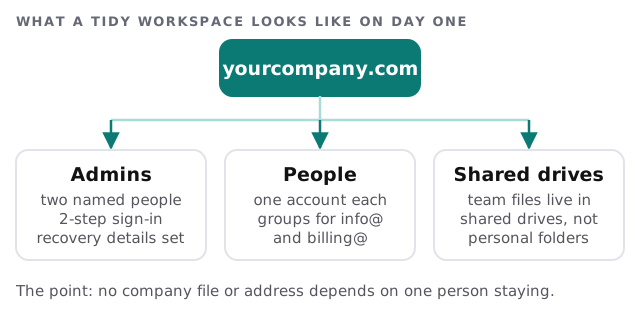
- Create two admin accounts. Not one. The admin account is the most powerful one in the system: it can reset passwords, delete users and reach all data. Google says it is enforcing 2-step verification on admin accounts, so both get it from the start.
- Create the people. One account per human being. Shared inboxes such as info@ or billing@ become groups, not logins that three people share.
- Build the shared drives. Team files go in shared drives so they stay when a person leaves.
- Switch mail last. Only when the accounts exist and have been tested do we change the MX record.
- Turn on the protections. Required 2-step sign-in for everyone, with security keys or authenticator prompts rather than texts.
- Hand over a one-page guide that answers “where do I save this?”
The mail switch, and why it needs a window
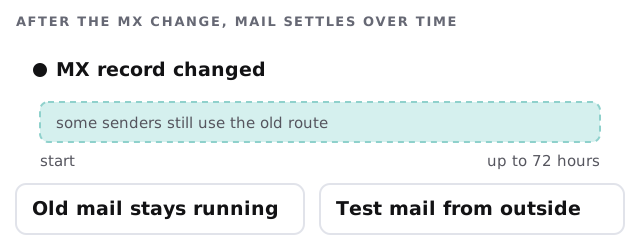
Google’s setup guide says the MX record value is smtp.google.com with priority 1, and tells you to remove any other MX records. Leftover old records can send mail somewhere nobody expects. The guide also says the new records can take up to 72 hours to be recognised.
During that window some senders still use the old route. That is why we plan the switch for the start of a quiet stretch, keep the old mailboxes alive, and send test messages from outside accounts before announcing anything to staff.
If your mail is coming from somewhere else today, the email migration service for small business page explains how existing mail is copied across. For the DNS side, see domain and DNS management for small business.
Choices that are cheap now and awkward later
Sign-in method
Pick the method before staff pick for themselves. A security key is the strongest, and a prompt on the phone or an authenticator app is a decent second. Text messages are the weakest and Google says they might be intercepted.
Naming
Decide how addresses look before you create thirty of them. First name only works until the second Sam arrives.
Groups for shared addresses
If three people answer info@, make it a group. When one leaves, you edit the membership, not a password that has to be told to everyone again.
Sharing defaults
Decide up front whether staff may share files with people outside the company, and whether that needs a second look for client folders. It is far easier to set a sensible default in the first week than to untangle two years of links nobody remembers sending.
Leaving day
Have a rule for what happens to a departing person’s mail and files. Our notes on employee onboarding and offboarding IT give a checklist to start from.
Google or Microsoft?
If you are still deciding, the comparison in Microsoft 365 vs Google Workspace for small business sets them side by side without picking a winner for you.
The best Workspace setup is the one where losing any single person, including whoever set it up, changes nothing about how the company runs.
What we need from you
- Domain registrar login, or the name of whoever holds it.
- A list of staff, plus every shared address you use today.
- Two people willing to be admins.
- A quiet day for the mail switch.