Ask a salesperson what is in their CRM and what is in their inbox, and the two tell different stories. The deal says “proposal sent” while the actual email thread says the customer replied three days ago with questions. Gmail to CRM automation closes that gap by recording the conversation where the rest of the team can see it. Done properly, it is how you log emails to a CRM automatically without turning your CRM into a dumping ground for every message anyone has ever sent.
Three ways to get email into a CRM
| Route | How it works | Good for | Watch out for |
|---|---|---|---|
| A BCC address | Staff copy a special address on each email | Small teams starting out | People forget |
| The CRM’s own Gmail link | The CRM connects to a mailbox and syncs | Most single-CRM setups | Little control over what it files |
| A custom watcher | Our code listens for mailbox changes and applies your rules | Special rules, several tools | More to build and monitor |
Try the middle route first. We build the third when its rules are not enough.
How a watcher hears about new mail
Google’s Gmail API supports push notifications through Cloud Pub/Sub. You create a topic, give Gmail permission to publish to it, and then ask Gmail to watch a mailbox. The notification that arrives carries the user’s email address and a history id, not the messages themselves. Your code then asks Gmail what changed since the last id it saw and fetches those messages.
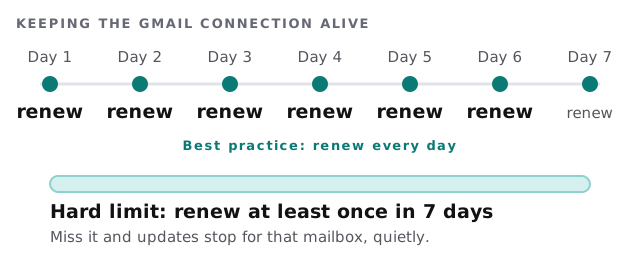
The part people overlook is renewal. Google’s guide says you must call the watch request at least once every seven days or you stop receiving updates for that user, and it recommends calling it once a day.
Decide what gets logged
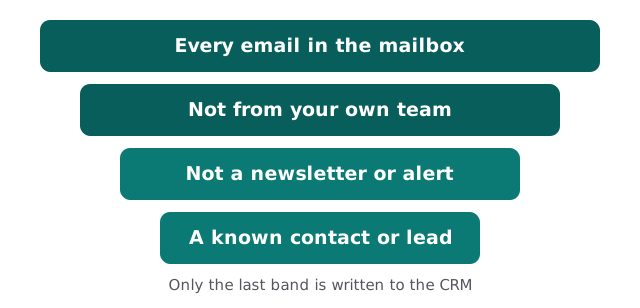
Logging everything is the fastest way to lose trust in the CRM. Staff stop reading the timeline because it is full of noise, and some of it should never have been recorded.
Rules we usually set
- Log only senders and recipients who match a contact in the CRM.
- Ignore your own domain, unless a thread includes a customer.
- Skip newsletters, receipts and no-reply addresses.
- Let a person mark a thread as private so it is never filed.
- Attach the thread to the open deal, not just the contact.
Privacy comes before convenience
Email is personal. Before connecting anything, agree who consents, which mailboxes are in scope and how someone leaves the scheme. The automation reads only what the rules allow, and the log shows what was filed and why. If your staff use their mailboxes for private business, say so now and design around it.
Signs you need it
- Deals stall because nobody can see the last message.
- A colleague asks “did we reply to them?” and the answer is in someone’s inbox.
- You lose history when a salesperson leaves.
- Your team copies emails into notes by hand.
Rather build it yourself?
If your CRM has a Gmail link, switch it on for one person and see what it files. Our guides for HubSpot and Pipedrive cover getting the CRM side ready, and setting up Zapier for your team shows how to connect the rest. For shared inboxes, see our page on AI email triage for shared inboxes. Meetings follow the same pattern, covered in calendar booking to CRM automation.
What we need from you
- Which mailboxes are in scope, with each owner’s agreement.
- Your CRM, and a sample of contacts to test with.
- The rules for what should and should not be filed.
We start with a plan and a fixed quote. A person approves the filtering rules before the first real mailbox is connected.
Email in a CRM is only useful if it is the right email. Choose what to leave out before you choose what to bring in.